Perfect for professional development that occurs over multiple sessions
A Lecture Series allows you to manage professional development that takes place over multiple sessions while keeping everything under a single activity.
This is ideal for:
- Monthly professional learning programs
- Workshop series
- Staff training spread across multiple dates
- Online learning programs delivered in stages
Instead of creating a new activity for every session, you can create one Lecture Series and add multiple dates.
Step 1: Create a new lecture series
Navigate to:
In-house Activities → Add Activity
Select Lecture Series from the list of activity types.
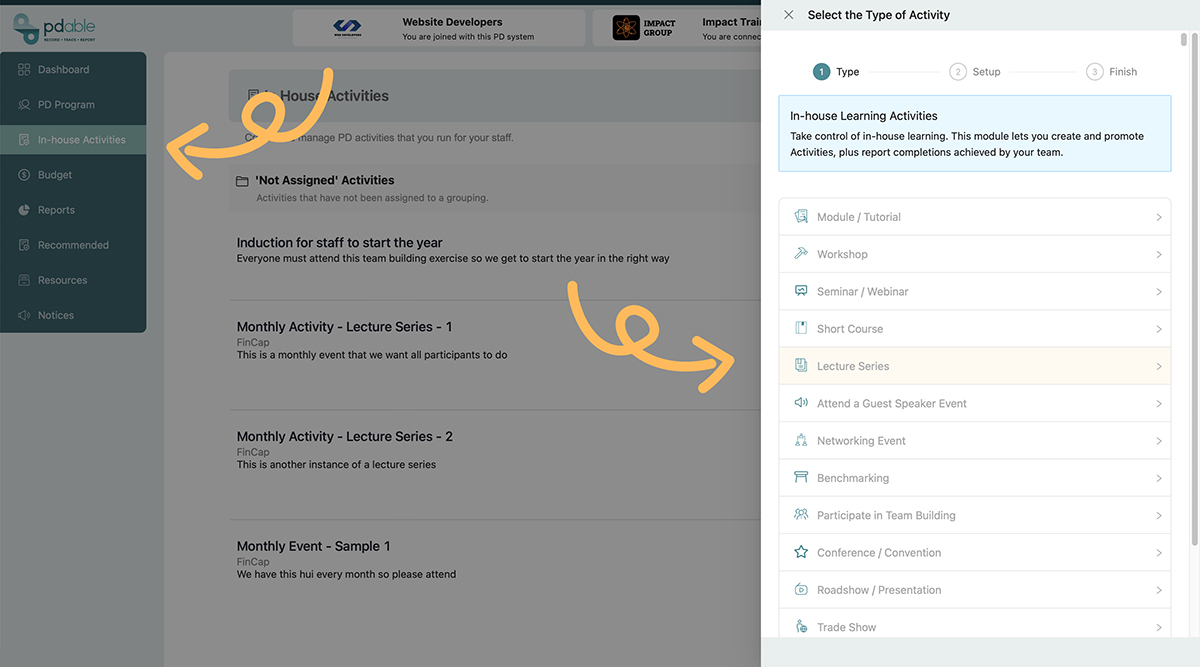
Complete the activity details including:
- Title
- Description
- Teaser text
Step 2: Set the timing
Under the Timing section, select Scheduled.
This enables the additional date and time options required for a Lecture Series.
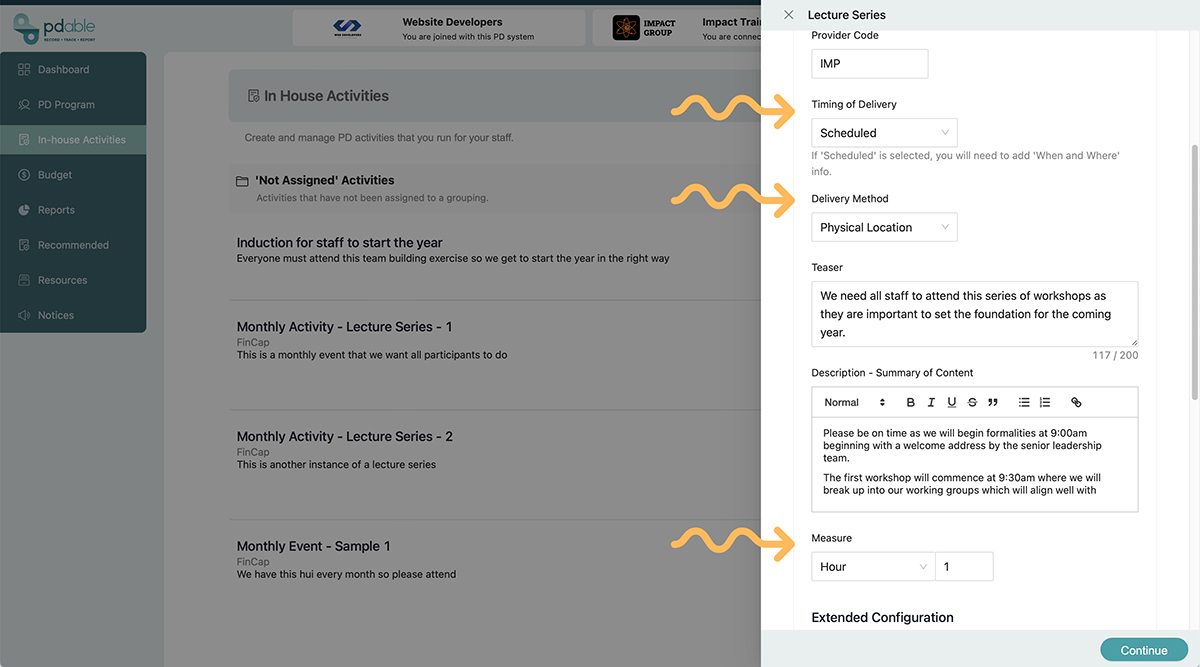
Choose the appropriate Delivery Method:
- Online
- Physical Location
- Mixed
Enter the Measure (duration) which will be used for each session.
Example: If each workshop runs for one hour, enter a duration of one hour.
Fill in the rest then click Finish.
Step 3: Add your session dates
Once the activity has been saved, it will appear in the In-house Activities list, click on it and navigate to the Where & When tab.
This is where you can add all dates and times that form part of the Lecture Series.
For example:
- Session 1 – 10 March
- Session 2 – 10 April
- Session 3 – 10 May
- Session 4 – 10 June
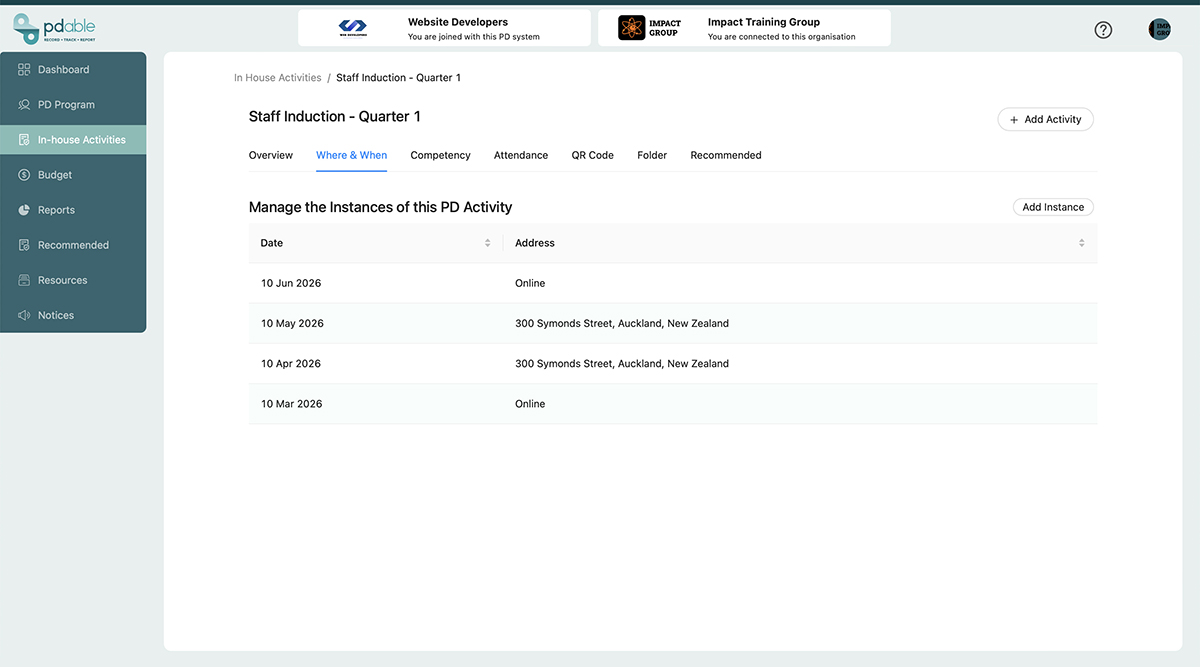
After entering your dates, click Save.
Step 4: Check competency settings
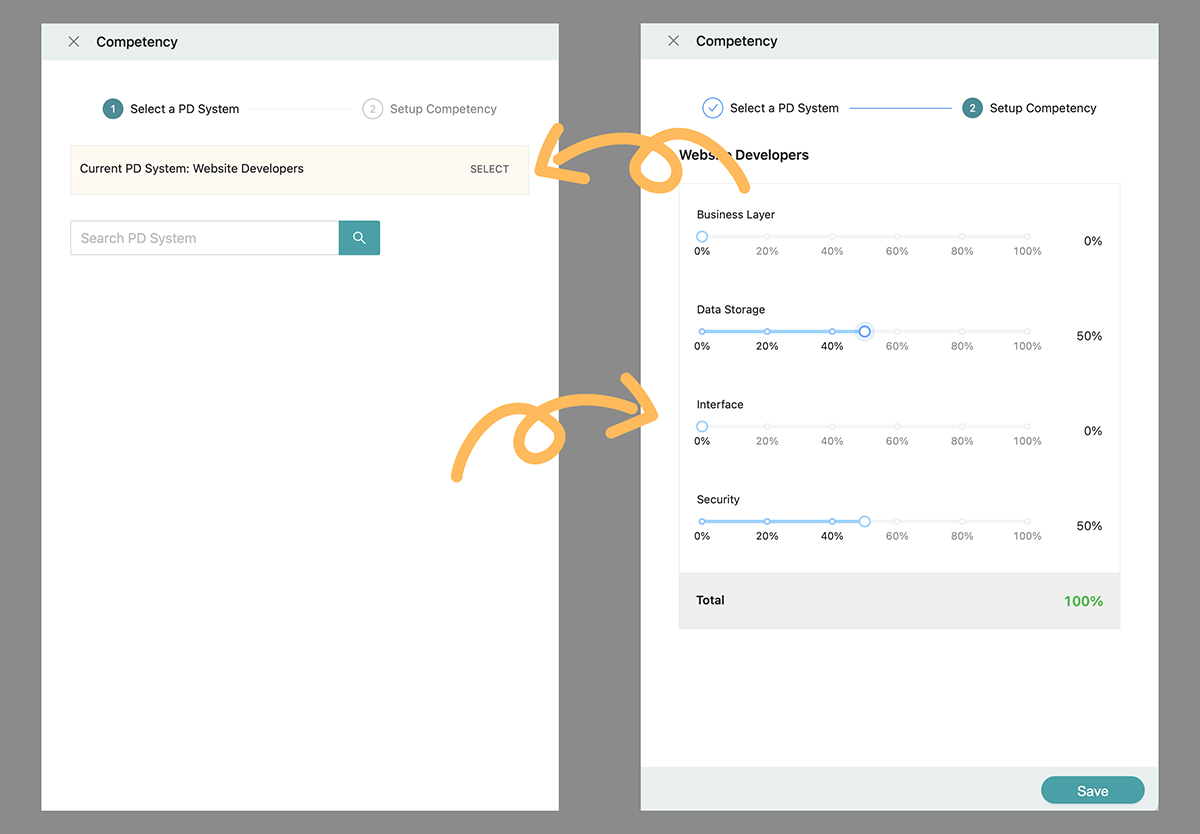
Open the Competencies tab to review any competencies linked to the activity. Click the Add button, then select a PD system (the current one is highlighted at the top of the form), if you want to assign other standards from another system you can search for it in the field provided.
This ensures staff receive the correct professional development recognition when completing the sessions.
Step 5: Recommend the activity to staff
If you would like staff to see the Lecture Series in their Recommended Activities list, switch the recommendation setting to On (you may have already done this in the initial setup, if not, turn it on here).
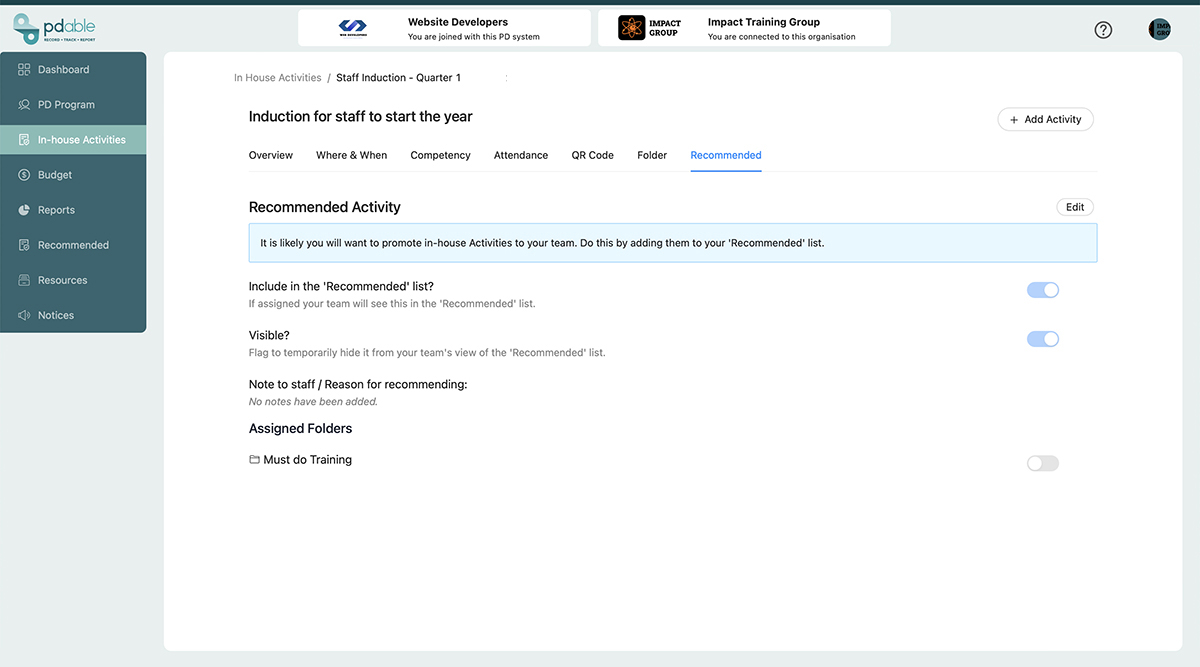
The Lecture Series will now appear to relevant staff members.
Recording attendance and completions
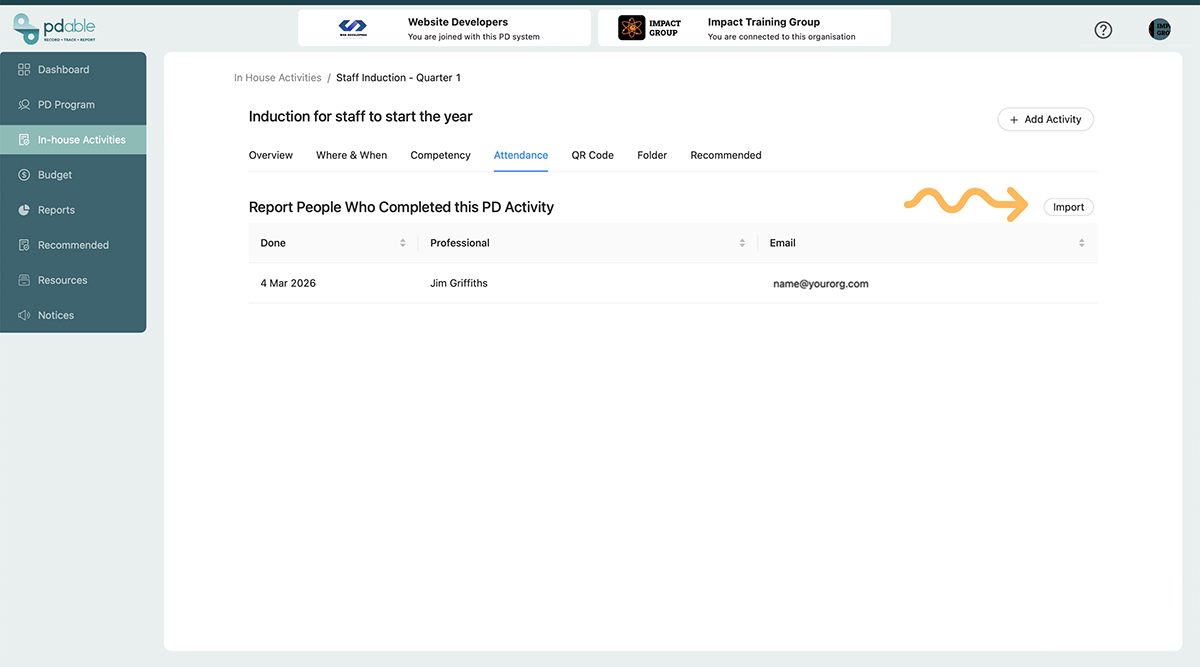
As staff complete sessions within the Lecture Series, PD able can automatically track their participation and award CPD hours or points.
Administrators can also:
- Monitor completions
- View attendance records
- Add attendees manually
- Import attendees using a text file of staff email addresses
Speed up attendance with QR codes
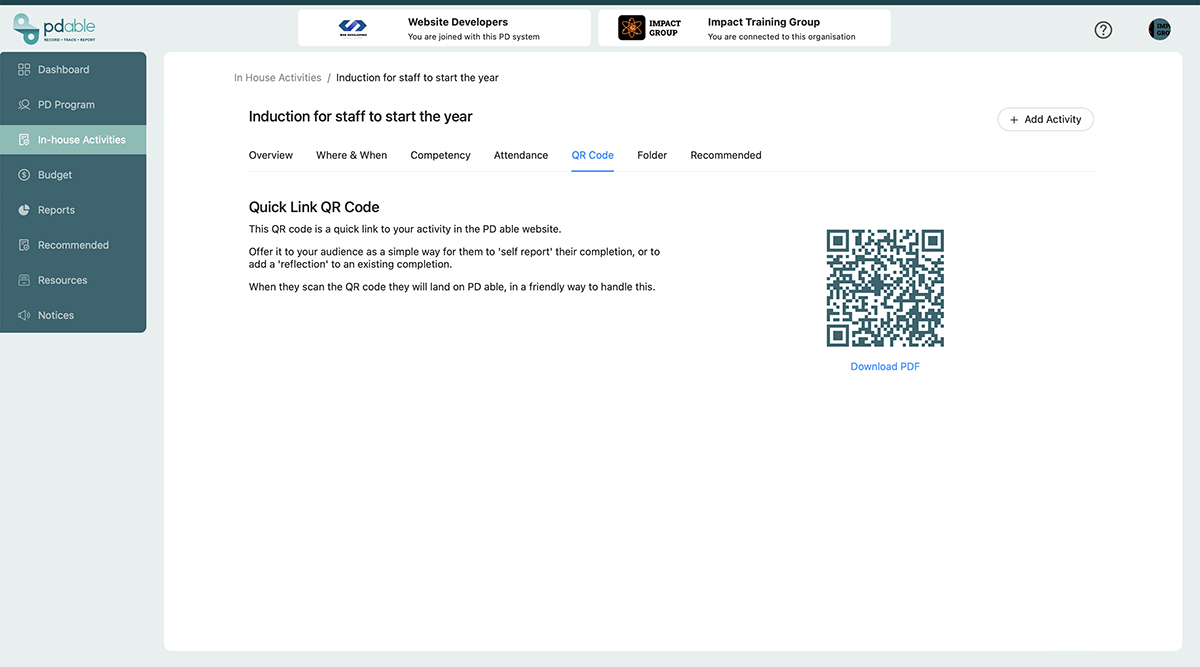
Each Lecture Series includes a QR Code option that makes attendance fast and easy.
Simply display the QR code during the session or share it afterwards. Staff can scan the code or click the link to access the activity.
This reduces administration and makes recording attendance much quicker.
Summary
Lecture Series activities are perfect when professional development occurs across multiple sessions.
By creating one activity and adding multiple dates, you can:
✓ Reduce administration
✓ Keep all sessions together
✓ Track attendance and completions
✓ Award CPD hours or points
✓ Simplify participation using QR codes
Need help setting up a Lecture Series? Contact the PD able support team and we'll be happy to assist.